Pharmacy Programs Administrator (PPA)
Connect Light with PPA to handle claiming for eligible pharmacy program encounters
Light integrates with the Pharmacy Programs Administrator (PPA) to handle claiming for eligible pharmacy program encounters. Once connected, Light will automatically use PPA claiming for eligible encounters.
Discover training videos and step-by-step guides for PPA at lightplatform.com.au/illuminated/modules/ppa.
Before You Start
You'll need access to your PPA Portal — you'll be grabbing a couple of details from there.
- ✅ Active PPA Portal account at app.ppaonline.com.au/home
- ✅ A generated API Key from the PPA Portal (see Step 1 below)
Step 1: Generate an API Key in PPA Portal
- Log in to the PPA Portal at app.ppaonline.com.au/home
- Generate your Integration API Key — if you're not sure how, PPA have a user guide for that. Contact PPA directly or refer to the PPA Portal User Guide for Integration and API User Keys
- Copy your PPA User ID and PPA API Key — you'll need both in the next step
Step 2: Connect PPA in Light
Important: If you generate a new API Key in the PPA Portal, you must update it in all pharmacy software that uses it — not just Light. If you only update it in Light, PPA claiming may stop working in your other systems. Make sure all platforms are updated at the same time.
- Navigate to Settings in Light
- Click Integrations in the settings sidebar
- Find the Pharmacy Programs Administrator Account Details section
- Enter your PPA User ID
- Enter your PPA API Key
- Click Save
Once saved, the API Key is hidden for security (as required by PPA). You will not be able to view the key again in Light.
Step 3: Choose Your Service Provider
Choose the service provider you'll use to submit claims. If your account is linked to multiple providers, select the one that matches this site.
Step 4: Confirm Connection
After saving, you'll see a success confirmation indicating that Light is connected to PPA. From this point, Light will use PPA claiming for eligible encounters.
Your API key will expire and PPA will send you reminders to regenerate it.
Claiming Programs
Once connected, Light automatically evaluates encounters for claim eligibility across supported PPA programs.
NIP and VIP Claims
Claims for the National Immunisation Program (NIP) and Vaccine Incentive Program (VIP) are evaluated automatically when you record vaccination encounters through the AIR integration.
CVCP Claims
The COVID-19 Vaccination in Community Pharmacy (CVCP) Program is also supported. When you record a vaccination encounter with an eligible COVID-19 vaccine, Light automatically evaluates whether a CVCP claim can be made and prepares it for submission.
CVCP claims are evaluated per vaccine episode, so multi-dose encounters produce individual claims. Light prevents duplicate claims for the same episode — if a claim has already been submitted, it won't be created again.
To submit or amend a CVCP claim:
- Open the vaccination service on the booking
- Find the Claims card
- Review the prepared claim details
- Click Submit Claim or Amend Claim
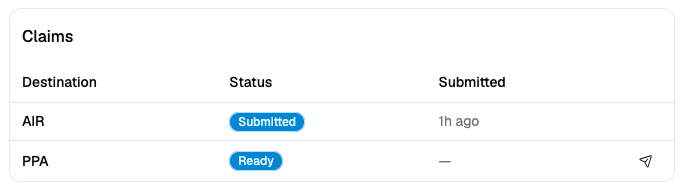
If a claim fails to submit, Light surfaces the error returned by PPA so you can review and correct the issue before retrying.
Reviewing Claims
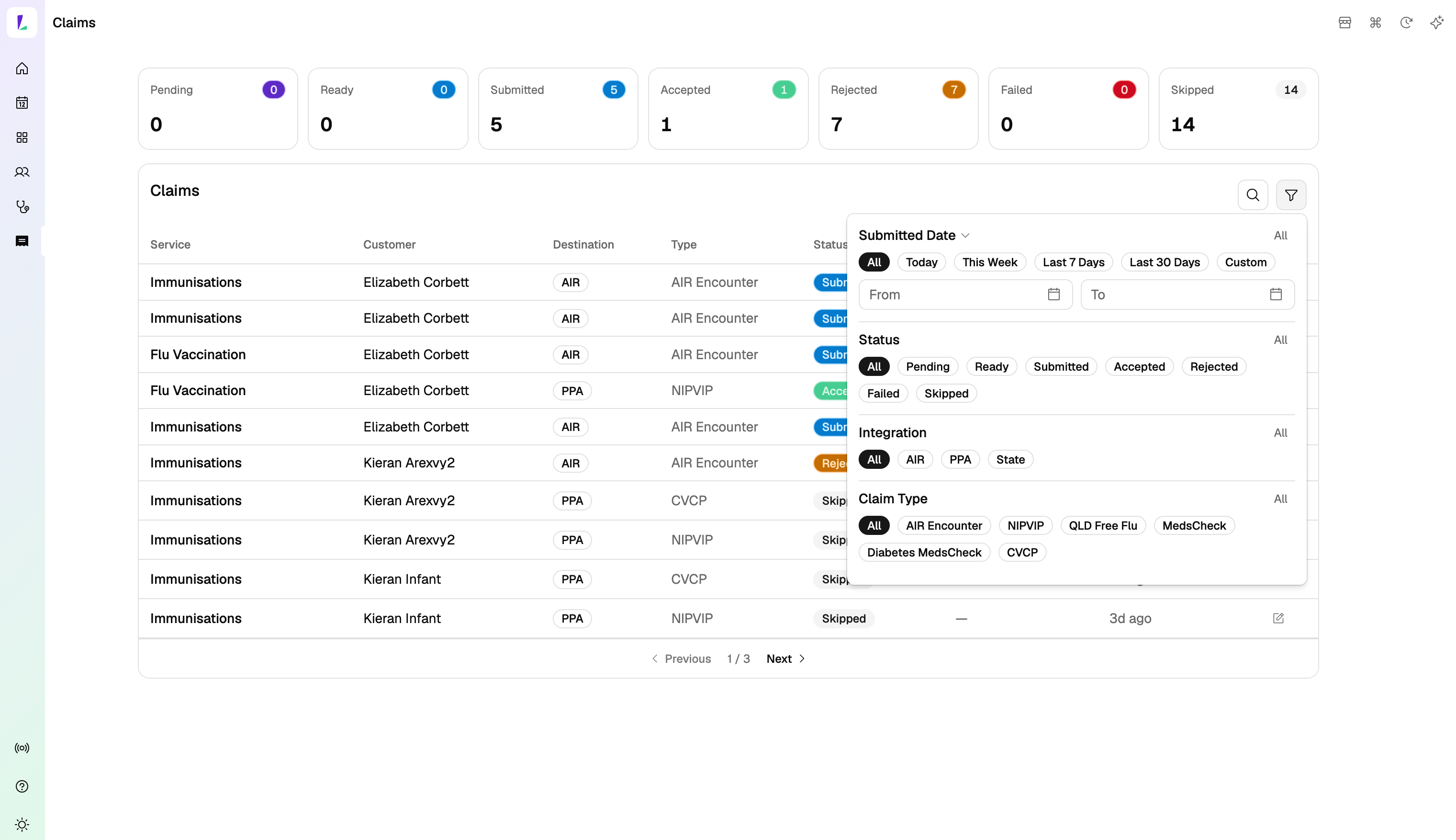
The Claims screen gives you a central place to track and reconcile all your PPA claims.
How to get there
- Tap Claims in the sidebar
Filtering claims
- By date — tap the date filter at the top and use the ▾ to switch between created date and submitted date.
- By status — filter by the current state of the claim (e.g., Submitted, Accepted, Rejected).
- By integration — filter claims by which integration they were submitted through.
- By claim type — filter claims by their program type (e.g., NIP, VIP, CVCP).
Status cards
The status cards at the top of the screen give you a quick overview of your claims. Hover over a status card to see a tooltip explaining what that status means. Tap a card to filter the table to just that status, and tap it again to clear.
Scrolling through claims
Claims are split across pages. Use the page controls at the bottom to move between pages.
Updating Your API Key
To update the API Key in Light:
- Navigate to Settings → Integrations
- Find the Pharmacy Programs Administrator Account Details section
- Enter the new API Key
- Click Save