Dynamic Availability
Configuring services with automatic resource matching
Dynamic availability lets you define what types of resources a service needs, rather than linking specific resources. The system automatically finds matching resources for each timeslot.
Resource Requirements
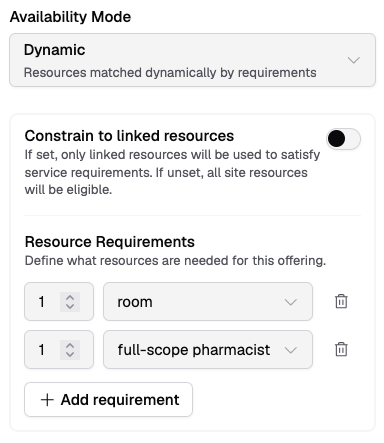
The core of Dynamic mode is the resource requirements list. Each requirement specifies:
| Field | Description |
|---|---|
| Quantity | How many resources are needed (e.g., 1, 2) |
| Match by | How to find resources — either by resource kind or by tag |
Example: A vaccination service might require:
- 1 × Room (matched by resource kind)
- 1 × full-scope-pharmacist (matched by tag)
The system finds all valid combinations of available resources that satisfy every requirement for each timeslot.
Matching by Resource Kind vs Tag
- Resource kind matches resources by their type (Room, User, Device). Use this when any resource of that type will do.
- Tag matches resources that have a specific tag applied. Use this for matching by capability or qualification — e.g., "full-scope-pharmacist" or "has-bp-machine".
Constrain to Linked Resources
By default, the system considers all resources at your site when matching requirements.
Toggle Constrain to linked resources to limit matching to only those resources explicitly linked to the offering. Use this when you want dynamic matching within a specific pool of resources rather than your entire site.
When constrained, the Resource Requirements card on the offering detail page also shows the linked resource pool and highlights any linked resources that don't match any requirement.
Configuring Dynamic Availability
- Go to Settings → Service Offerings
- Click on an offering (or create a new one)
- Click Edit
- Set Availability Mode to Dynamic
- Configure the first requirement row — choose a quantity and match criterion
- Add more requirements as needed using + Add
- Optionally toggle Constrain to linked resources
- Save
Resource Requirements Card
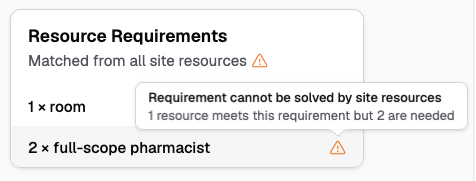
On the service offering detail page, a Resource Requirements card shows the configured requirements. Hover over the info icon next to a requirement to see which resources currently match it.
Warnings
The card displays warnings when requirements can't be satisfied:
- Not enough resources — fewer resources match a requirement than the quantity needed
- Conflicting requirements — each requirement can be met individually, but not all simultaneously (e.g., two requirements that both need the same single resource)
- Unused linked resources — when constrained to linked resources, a linked resource doesn't match any requirement
If warnings appear, review your resource requirements and ensure enough matching resources exist at your site. You may need to tag additional resources or create new ones.
Variant Inheritance
Variants within an offering group inherit their parent's dynamic resource configuration automatically — both the requirements and the constrain-to-linked-resources setting. Changes to the parent flow through to all inheriting variants.
See Variant Overrides for details on inheritance.
Targeting Services on Resource Pages
When viewing a resource's detail page, the Linked Services card includes a Targeting Services section. This lists dynamic services that target the resource via their requirements, showing which requirements matched. This helps you understand which services will be affected if you change a resource's tags or kind.
Common Scenarios
Vaccination Service with Flexible Staff
Your pharmacy has several pharmacists, two of whom are tagged "full-scope-pharmacist", and one consultation room.
Requirements:
- 1 × Room (by kind)
- 1 × full-scope-pharmacist (by tag)
Result: Vaccinations are available whenever any room and any full-scope-pharmacist-tagged pharmacist are both free. When a new pharmacist receives the "full-scope-pharmacist" tag, they're automatically included in vaccination availability.
Service Requiring Multiple Staff
A complex consultation requires two staff members present simultaneously.
Requirements:
- 1 × Room (by kind)
- 2 × User (by kind)
Result: The service is only available when a room and two staff members are all free at the same time.