Recording New Vaccination Encounters
Step-by-step guide to recording a new vaccination encounter to AIR
Record a new vaccination encounter to submit it directly to AIR.
Prerequisites
- Patient identified in AIR (green badge)
- PRODA device connected
- Vaccination details ready (date, vaccine, dose, batch number)
Step 1: Open the Recording Form
There are two ways to open the encounter recording form:
From the patient profile:
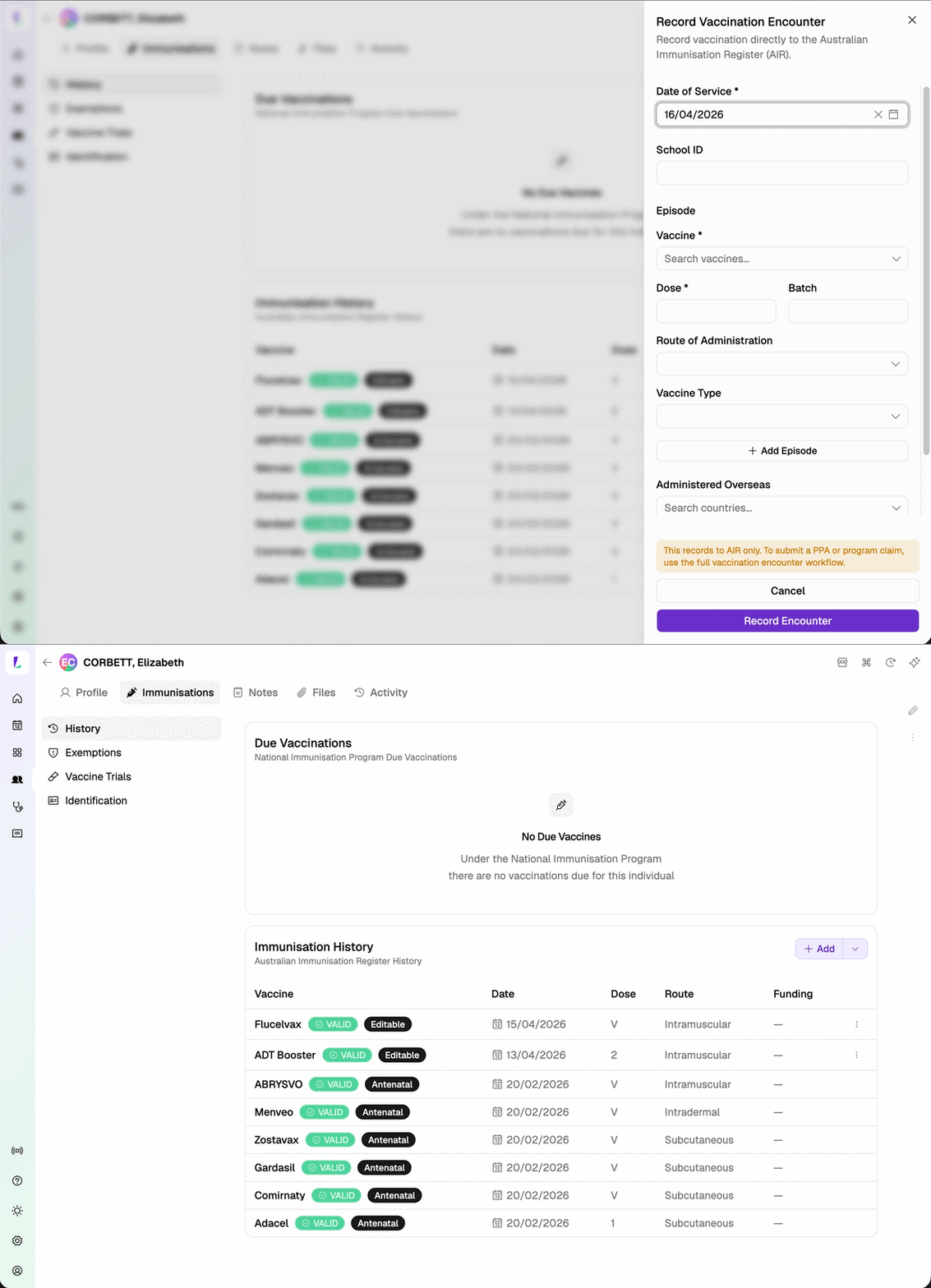
- Open the patient's profile in Light
- Find the Immunisation History card
- Click the Add button to open the Record Vaccination Encounter form

AIR only: When you record a vaccination from a customer's Immunisation History, it goes directly to AIR. It does not go through PPA or State-funded claiming, and will not appear in your Claims screen or Service Report. If you need to submit a claim for this vaccination, record it through a booking instead.
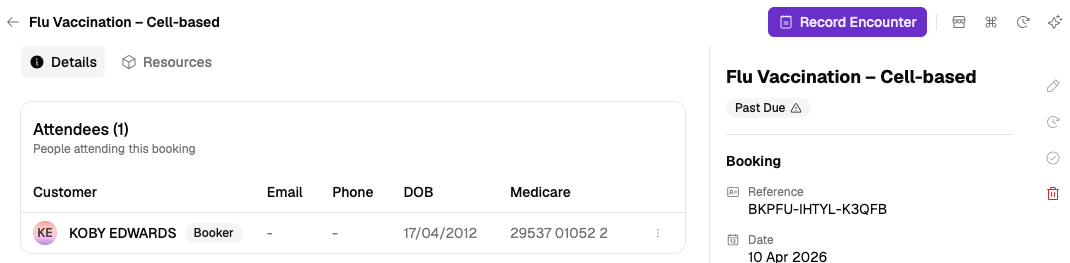
From a booking (shortcut):
If you're viewing a booking with a single vaccination service, click the Record Encounter button in the booking page top bar to jump straight to the encounter form.
Step 2: Enter Encounter Details
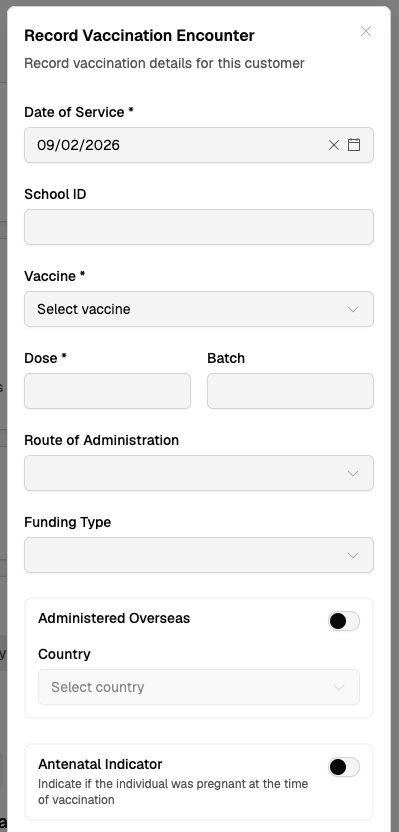
Date of Service
Select the date the vaccination was administered. Defaults to today. This determines which vaccines appear in the dropdown.
School ID (optional)
Enter a school ID if this is part of a school-based immunisation program.
Vaccine
Select the vaccine from the searchable dropdown. Only vaccines valid for the selected date of service are shown.
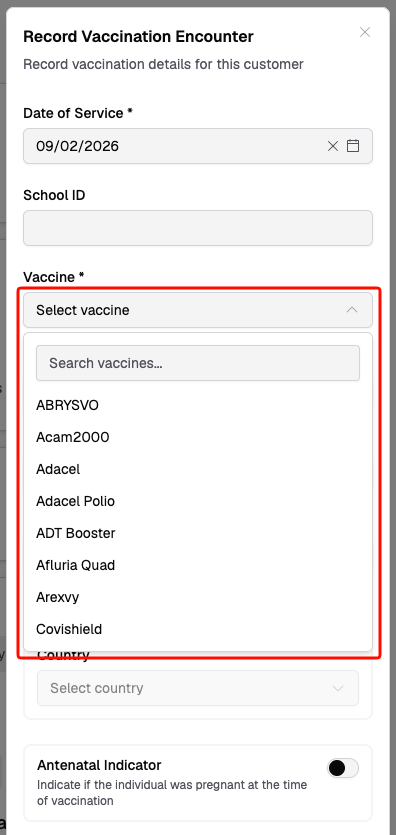
See Selecting Vaccine Codes for details on how filtering works.
Dose
Enter the dose number in the vaccination series (e.g., 1, 2, 3).
Batch
Enter the batch number from the vaccine vial. This field becomes mandatory for certain vaccines — an asterisk (*) will appear when required.
Route of Administration
Select how the vaccine was administered (e.g., Intramuscular, Subcutaneous, Oral). Options are filtered to valid routes for the selected vaccine. Becomes mandatory for certain vaccines.
Funding Type (optional)
Select the funding source (e.g., NIP, Private, State/Territory). Options are filtered to valid types for the selected vaccine.
Administered Overseas (optional)
Toggle on if the vaccination was given outside Australia, then select the country. See Overseas Vaccinations.
Antenatal Indicator (optional)
Toggle on if the patient was pregnant at the time of vaccination. This field is available for non-male patients.
Step 3: Submit
- Review all entered details
- Click Record Encounter
- A success toast confirms the encounter was recorded
If AIR returns warnings or pends the encounter, see Accept and Confirm.
You are responsible for the accuracy of all information submitted to AIR. Always verify dates, vaccine codes, and batch numbers before submitting.