Selecting Valid Vaccine Codes
How vaccine selection works with automatic date-based filtering
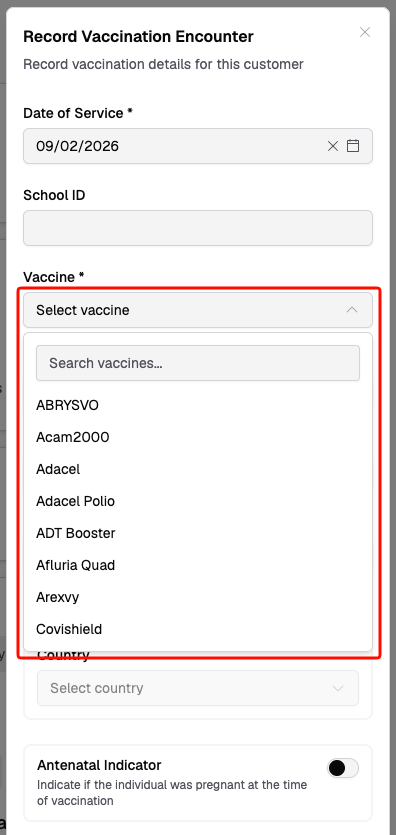
Light automatically filters the vaccine dropdown to show only vaccines that were valid on the selected date of service and that are in your site's default vaccine list.
Default Vaccines
Your site can configure a default vaccine list to control which vaccines appear during encounter recording. This keeps the dropdown focused on what your pharmacy actually stocks.
To manage your defaults:
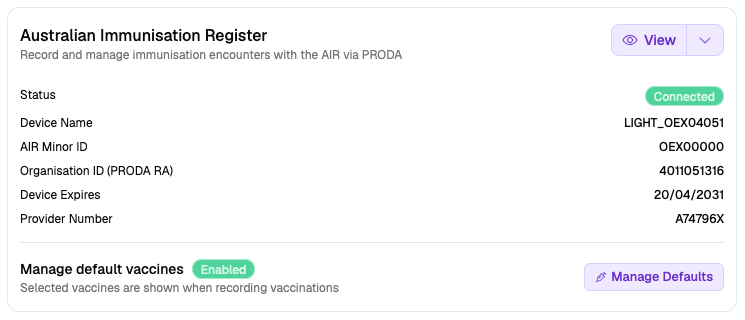
- Go to Settings → Integrations
- Find the AIR integration card
- Click Manage Defaults
Vaccines are grouped into Pharmacy Defaults (common vaccines pre-selected for all pharmacies) and Other Vaccines. Toggle vaccines on or off to match your stock. Changes take effect immediately when recording encounters.
If the vaccine you need doesn't appear in the encounter dropdown, check your default vaccine list in Settings. You may need to enable it.
How Filtering Works
- You select a Date of Service
- Light queries AIR reference data for vaccines valid on that date
- The list is filtered to your site's default vaccines
- If the service has specific antigen codes, matching vaccines appear first under a Likely heading
- Remaining default vaccines appear under Other vaccines
Each vaccine in AIR has a validity period (start date and end date). Light only shows vaccines where the date of service falls within this range.
Using the Vaccine Dropdown
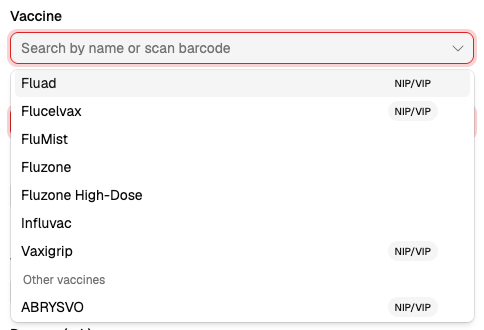
The vaccine dropdown is a searchable combobox:
- Type to search by vaccine name or brand (e.g., "Pfizer", "Infanrix")
- Vaccine names are shown as human-readable labels (e.g., "Comirnaty (Pfizer)" instead of AIR code "COMIRN")
- Select a vaccine from the filtered list
Eligibility Warnings
When you select a vaccine, Light checks the patient's age against the recommended age range for that vaccine. If the patient falls outside the range, an inline warning appears below the vaccine selection explaining the eligibility criteria.
These warnings are informational — you can still proceed with recording the encounter if clinically appropriate.

Changing the Date
If you change the Date of Service after selecting a vaccine, the vaccine list re-filters. If the previously selected vaccine is not valid for the new date, you'll need to select a different vaccine.
Related Fields
When you select a vaccine, Light also filters:
- Route of Administration — only valid routes for that vaccine
- Funding Type — only valid funding types for that vaccine
- Batch requirement — whether batch number becomes mandatory
- Route requirement — whether route becomes mandatory
- Default dose — dose number is prefilled when no previous value is cached